When I first heard about Notion AI Agents, my brain went all you know nothing, Jon Snow and panicked a bit at the effort of learning a new technology, especially since I had just returned from a long time off work. But guess what? Building Notion AI Agents is ridiculously simple. Hear me out: ridiculously simple. So simple that I spent just one Friday solving my own chaos, making things easier for myself rather than for others, which is what my job usually demands.
I started small and built myself three cute little agents:
- 🗓️ One that creates tasks from action items in meeting transcripts
- 📝 One that summarizes my week and sends an update to my team
- ☀️ One that acts as my daily assistant and lays out my plan for the day
Step 1
For starters, if you have never used Notion, what are you waiting for?! (Yes, read it in Gwen Stefani voice.) Create a Notion account.
The free version includes Notion Mail and Notion Calendar, and they both come with features you can play with. Although it does not include Notion AI, you do get a trial.
For the agents I built, you will need at least the Business Plan. Check the pricing page. (They're not paying me, I really just love Notion.)
Step 2
Do not know where to even start? Do what I did. Ask Notion AI in the bottom right corner: 'how can I build a custom agent?' and you will get step-by-step instructions for what needs to be done. But I will walk you through it here.
Navigate to the top left corner, click the little menu arrow next to the Create a new page button, and select Custom Agent.
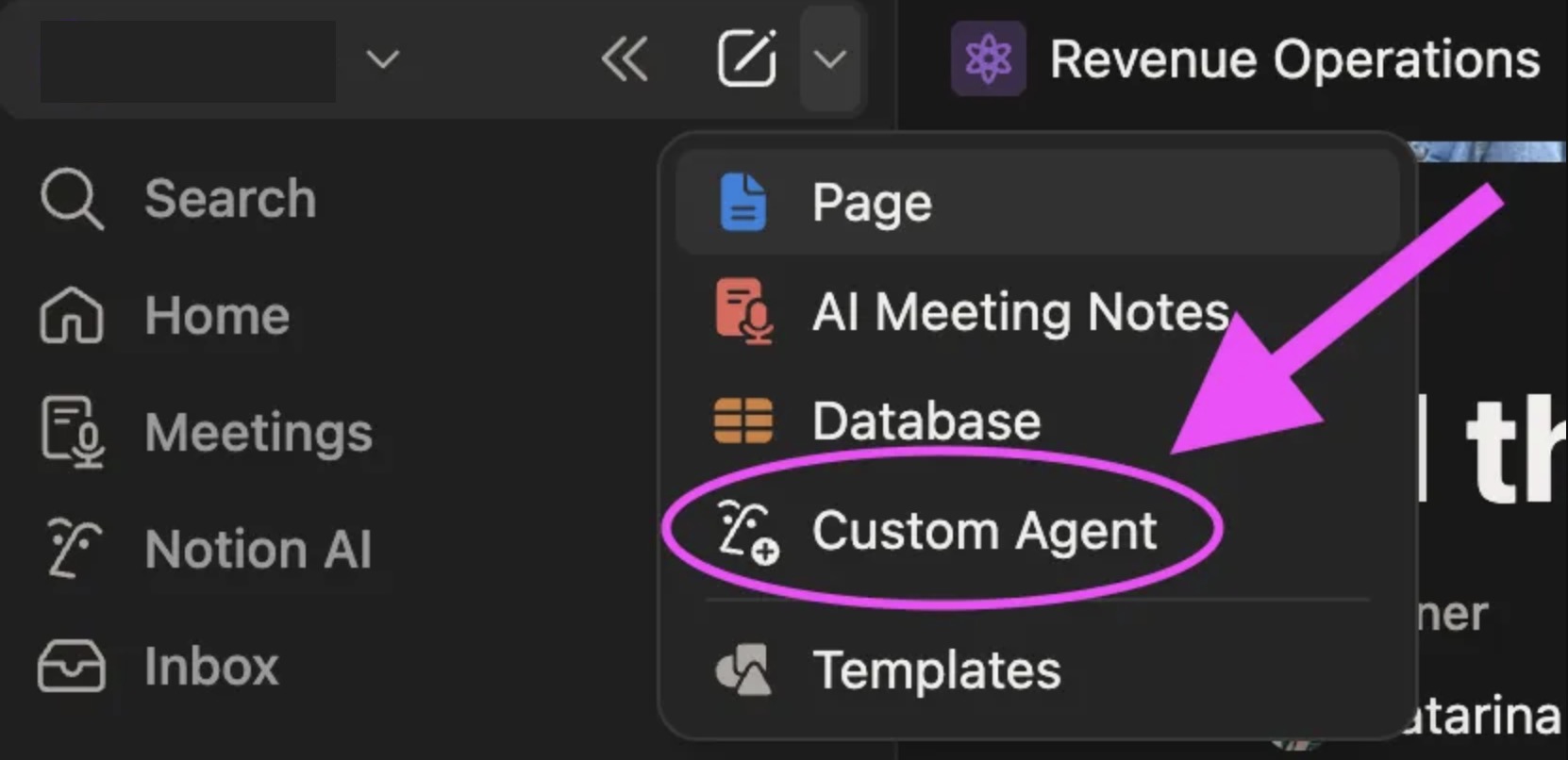
There you go. Easy-peasy-lemon-squeezy.
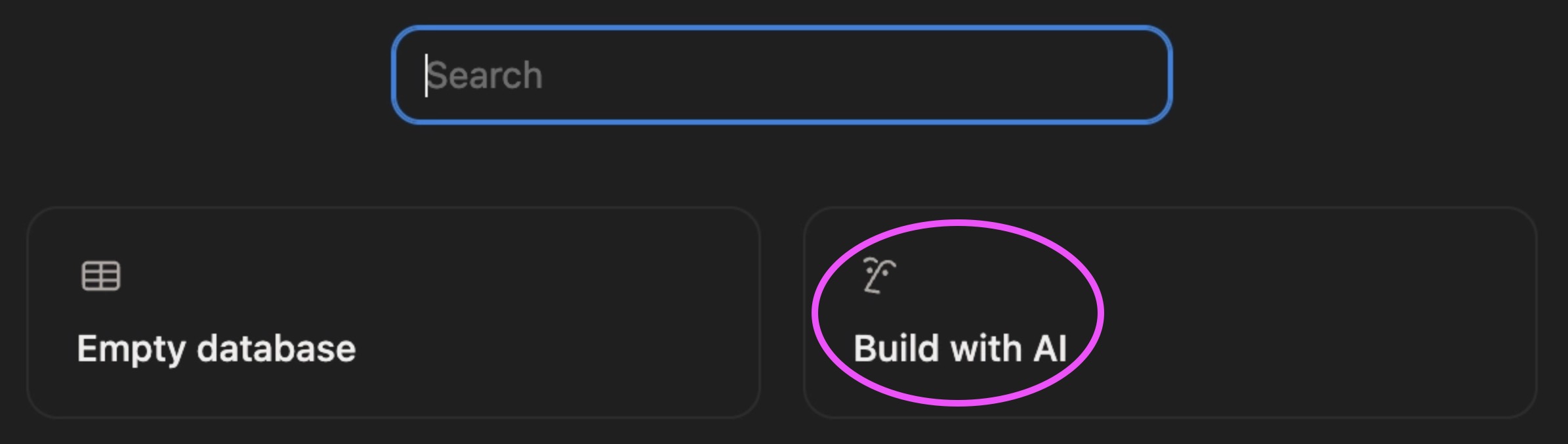
Now… an empty page can feel daunting, right? So why not leverage AI to build AI?
Notion will give you suggestions of agents, but you can also create your own. Go to the top right corner and click Create blank, or simply write in the chat bar.

Notion AI will not only write the instructions for your agent, it will also set the right settings configuration for what you need.

Of course, you can also define it yourself in Settings:
- What triggers the agent
- Which sources of information it uses
- What model it leverages to do the work
- The
Instructions, which is where you write your prompt
Before I created my instructions, I also defined the infrastructure I wanted to have. A modest infrastructure called databases.
Why? I use them as logs for troubleshooting, organization, and other automations I might want to add.
Step 3
Databases. You, me, and them, we are all lines in a row. In the digital world, that is.
Most software is built on databases, and to build your agents, it helps to build a few. All your work becomes traceable, organized, nice, and neat. And yes, you can also ask Notion AI to build them for you.

⬇️ My agent buddies create content in 3 databases:
- One for all my meetings
- One for all my weekly updates
- One for all my daily logs
⬆️ My agent buddies read content from 3 databases:
- One with all the tickets my users submit for me (Notion offers forms too)
- One with all the tasks I create for myself when I talk in meetings (I talk a lot)
- One with all the projects I am tasked with
Step 4
Building the agents and connecting those databases.
You will find I am very obvious in how I name things. Straight to the point, no cognitive effort.
❗ Here's the thing: what I built is far from perfect. I am still iterating and still learning. I probably did not use the most efficient way to build it, but I may follow up in a blog post with what I am doing differently (and better).
Agent: Autofill Tasks from Meeting Notes

Why this agent?
A transcript as my external brain can be gold, unless it is just sitting there as a block of text. To ensure meetings are productive, we need to follow through on next steps. And among the endless tasks that need to be done, I did not want to find myself digging through meeting notes hunting down all my next steps. I just wanted someone to add them to the Tasks database I usually work from.
What?
It takes the action items from my AI meeting notes and turns them into actual tasks in a database automatically. I used to do it manually.
How?
- Create a database for my meetings.
- Set it as the
Default meeting databasein settings, either via Notion Calendar or Notion AI settings. - Connect my calendar to Notion in
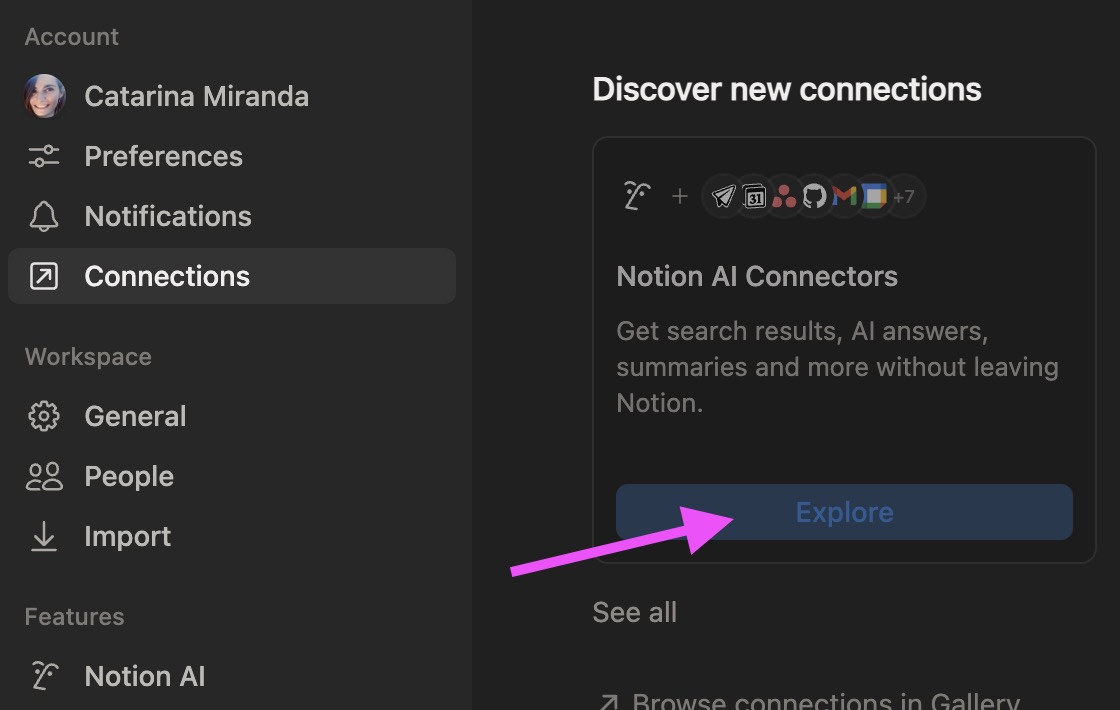
Connections. - Once Notion has access to my calendar, a
Join and transcribepop-up shows when I am about to start a meeting. When I click that button, Notion AI Meeting Notes starts recording, transcribes, generates the meeting notes including action items and adds them as a new page to the meetings database. - Set up the agent within the database to create a task page in the existing Tasks database for every action item assigned to me. Then link them back via the relation property in my meetings database. (Yes, database agents are a thing!)
- Voilà. Every time I join a meeting, all of that happens! I like the relation property in my meetings database because it immediately gives me clear visibility into my workload and commitments from that meeting.



Agent: Catarina Miranda Daily Assistant

Why this agent?
My work lives across slack, tickets, tasks, meetings, and emails. Slack notifications can quickly make everything feel urgent, but if everything is a priority, nothing is a priority, right?… Right? I needed a plan that forces focus, so I do the highest-impact work first (eat the frog!) and do not lose track of what matters.
What?
It creates a daily page every morning with a morning brief and a to-do list. It pulls only my open and due work, today's meetings, and email action items. Then it organizes everything into P0, P1, and P2 (priority levels).
How?
- Create a database for my daily planning, where all daily pages are stored.
- Set up the agent settings to read and write to the appropriate databases, and manually configure the connection to Mail and Calendar.
- Clearly define your P0, P1, and P2 for yourself and for your agent. (This can be the trickiest part. Make sure you are always aligned with your manager.) I'm prioritizing meetings, then tickets, then tasks, then email action items, and within those categories I prioritize them between High (P0), Medium (P1) and Low (P2).
- Write the instructions and test.

Initially, I asked Gemini to come up with instructions for this purpose. Then I decided to leverage the instructions from Notion agent templates and manually rewrite them for my purpose. Finally, I realized it can be much simpler, so I just chatted with my own Notion agent to improve its own instructions. The results were much better.
Use AI to build AI, hein?
Agent: Weekly Updates to My Team

Why this agent?
Weekly updates when done manually can become boring and easy to postpone (sorry, Sara 😬), and are definitely hard to write from memory. So I wanted someone to do it for me: a weekly update about my work sent to my manager and my team that is based on facts, not on what I feel happened that week.
What?
Every Friday, it creates a weekly update page in a database and drafts a short work summary. It pulls what I did during the current week from my Notion databases. Then, it sends the update to a slack channel.
How?
- Create a Weekly Updates database where each week a new page is added.
- Connect the agent's settings to the Notion databases it reads from — those that contain my tasks, tickets, and projects — as well as the database it writes to.
- Set the agent's trigger to run every Friday.
- Write strict instructions so it only pulls updates from the current week assigned to me as the owner or the team/follower involved in the work.
- Test it a few times and tighten the instructions until the output matches how I want to report work, and the template my manager prefers.
- Set up a database automation so the update is sent to a Slack channel. Because Notion Agents does not yet support private channels, I had to go for the simple database automation ⚡, instead of asking the agent to directly share to Slack (soon it will be possible too).
Step 5
Test. Manually check the outcome. If it is wrong, iterate on the instructions. Test again.
Iteration should not prevent you from sharing your work with colleagues as soon as you build it. I find my colleagues' feedback so valuable. Not only their critical eye, but also their enthusiasm for building too. That energy can be contagious.
Iterate some more. Keep building. Keep sharing. It is all the same step.